

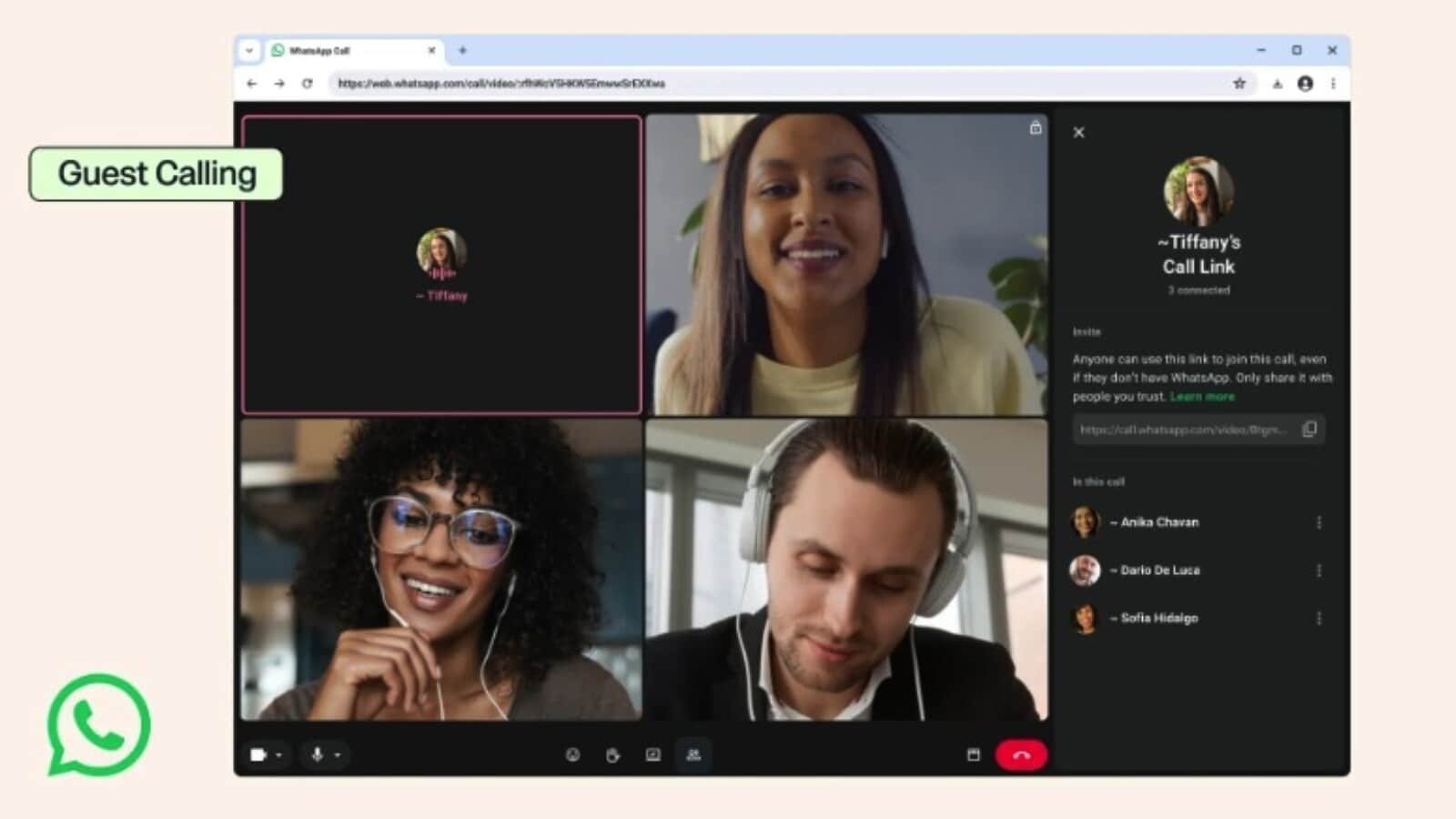
WhatsApp has officially introduced a new feature called Guest Calling, enabling non-WhatsApp users to join voice and video calls via a link without creating an account.
Rolling out globally across Android, iOS, and WhatsApp Web, this feature positions WhatsApp as a direct competitor to video conferencing platforms like Zoom, Google Meet, and Microsoft Teams by offering free, time-unlimited group and one-on-one calls.
Key Features & Meeting Capabilities
-
No Account Required: Anyone with a call link can join from a desktop or mobile web browser without signing up for WhatsApp.
-
No Time Limits: Calls are entirely free and unlimited in duration, preventing abrupt meeting cutoffs.
-
Large Group Capacity: Supports one-on-one calls as well as group video calls with up to 32 participants.
-
Interactive Tools: Guest participants can raise their hands to speak, send emoji reactions, and share their screens for collaboration.
-
Upcoming Calendar Integration: WhatsApp plans to roll out plugins for Google Calendar and Microsoft Outlook later this year to streamline scheduling.
Privacy, Security, and Host Controls
WhatsApp has implemented several host-side controls and privacy protections for guest interactions:
-
End-to-End Encryption: Guest calls maintain full end-to-end encryption.
-
Waiting Room & Host Approval: Guests cannot jump directly into a call. They must wait in a virtual waiting room until the host approves their entry. Hosts can also remove guests at any point.
-
Phone Number Protection: Guest participants cannot see the phone numbers of other participants in the call.
-
Restricted Actions: Guests cannot send chat messages or add other participants directly to the call.
Step-by-Step Guide: How to Create and Share a WhatsApp Guest Call Link
-
Update WhatsApp: Ensure you have the latest version of WhatsApp installed on your mobile device or desktop.
-
Open Calls Tab: Navigate to the Calls tab on your device.
-
Initiate Link Creation: Tap the + (Plus) icon at the top and select New Call Link.
-
Select Call Type: Choose between a Voice or Video call.
-
Enable Waiting Room: Toggle on Require Approval to Join to ensure guests must be let in manually by the host.
-
Share the Link: Tap Copy Link, then select either Send Link via WhatsApp or Share Link to send it via email, SMS, or third-party messaging platforms.
-
Schedule for Later (Optional): Tap Add to Calendar to add the call event directly to your digital calendar.
Note: Generated call links remain valid for up to 30 days before expiring if left unused.
