

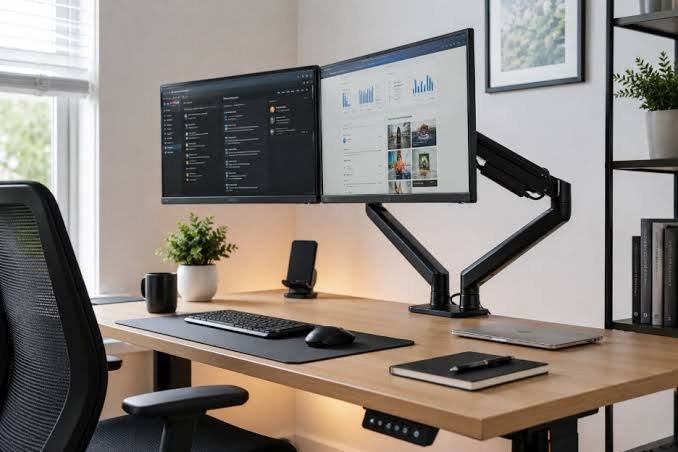
Transitioning from a single-screen setup to a dual-monitor layout significantly enhances productivity, reduces window-swapping friction, and creates a more spacious digital workspace. Whether for writing, office multitasking, video editing, or casual gaming, adding a second display streamlines daily tasks.
How a Second Screen Elevates Workflows
-
Content Creation & Research: Draft content on your primary screen while keeping research materials, outlines, and notes open on the second display. For photo and video editing, store reference clips, project bins, and tutorials on the secondary panel.
-
Office & Spreadsheet Multitasking: Compare datasets across multiple spreadsheets side-by-side without minimizing windows. Video calls can remain active on one monitor while taking notes or reviewing presentations on the other.
-
Streamlined Organization: Spread essential apps (email, team messaging, reference material) across screens to reduce window resizing and maintain focus.
Essential Dual-Monitor Setup Checklist
-
GPU & Output Verification: Confirm your PC or laptop supports dual video outputs (HDMI, DisplayPort, or USB-C with DisplayPort Alt Mode).
-
Display Alignment: Matching screen sizes, resolutions, and scaling settings ensures smooth mouse movement across displays.
-
Ergonomic Mounting: Utilize adjustable dual VESA monitor arms to align heights, optimize viewing angles, and reclaim desk surface area.
-
Cable Management: Allow sufficient cable slack for height or pivot adjustments.
Top Monitor Options for a Dual-Display Setup
-
Acer Nitro VG240Y X1 (Budget All-Rounder)
-
Specs: 23.8-inch Full HD IPS | 200Hz Refresh Rate | 0.5ms Response Time | 99% sRGB | 2x HDMI 2.0, 1x DP 1.2
-
Best For: High-refresh-rate gaming and productivity on a budget.
-
-
Dell S2725HSM (Ergonomic Home Office)
-
Specs: 27-inch Full HD IPS | 144Hz Refresh Rate | 300 nits Brightness | Full Ergonomic Stand (Height/Pivot/Tilt/Swivel)
-
Best For: Extended document reading, office multitasking, and comfortable view adjustment.
-
-
Lenovo Legion R27qe Gen 2 (High-Resolution Gaming & Work)
-
Specs: 27-inch QHD (2560×1440) IPS | 200Hz Refresh Rate | 0.5ms Response Time | 400 nits | DisplayPort 1.4, HDMI 2.1
-
Best For: Sharp text rendering, expansive screen real estate, and high-framerate gaming.
-
-
BenQ MOBIUZ EX271Q (Creative Workstation & KVM)
-
Specs: 27-inch QHD IPS | 180Hz Refresh Rate | 95% DCI-P3 | 65W USB-C Power Delivery | Built-in KVM & Remote
-
Best For: Laptop single-cable connectivity, video editing, and multi-device setups.
-
-
ASUS ProArt PA278QV (Color-Accurate Professional Display)
-
Specs: 27-inch QHD IPS | 75Hz Refresh Rate | 100% sRGB / Rec. 709 | Factory Calibrated ($\Delta E < 2$) | USB 3.0 Hub
-
Best For: Professional photo/video editing, graphic design, and color-critical tasks.
-
Quick Specification Comparison
| Model | Size & Resolution | Refresh Rate | Key Features | Sale Price |
| Acer Nitro VG240Y X1 | 23.8″ Full HD (1080p) | 200Hz | High refresh rate, low cost | ₹8,999 |
| Dell S2725HSM | 27″ Full HD (1080p) | 144Hz | Fully adjustable stand, built-in speakers | ₹13,799 |
| Lenovo Legion R27qe Gen 2 | 27″ QHD (1440p) | 200Hz | High resolution, 400 nits brightness | ₹14,999 |
| BenQ MOBIUZ EX271Q | 27″ QHD (1440p) | 180Hz | 65W USB-C PD, KVM, 95% DCI-P3 | ₹23,749 |
| ASUS ProArt PA278QV | 27″ QHD (1440p) | 75Hz | Factory calibrated ($\Delta E < 2$), 100% sRGB | ₹27,990 |
